
- Connect the receiver using WiFi
-
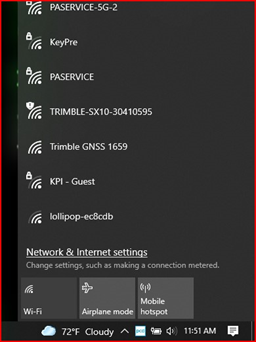
- Find the receiver on the Network Internet setting
-
-
-
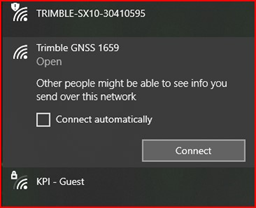
- Then connect to the receiver by selecting the receiver and then selecting connect
-
- Opening the receiver configuration menu using the WebUI
- Enter 192.168.142.1 in your browser address bar and select the enter key.
-
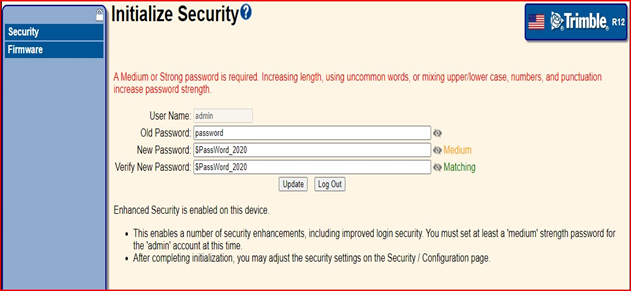
- Enter User Name: admin Password: password you may be prompted to create a strong password. If that is the case use the password: $PassWord_2020 that is a default password used incase the receiver has to come in for service.
- After that is entered select Update
-
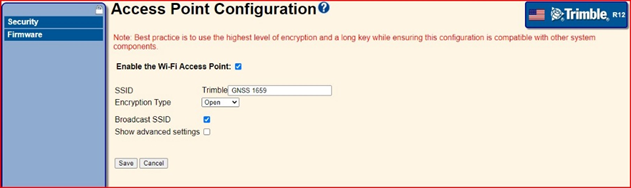
- Then Access Point Configuration will pop up. You can let the setting the same and select save.
- Changing receiver System Name
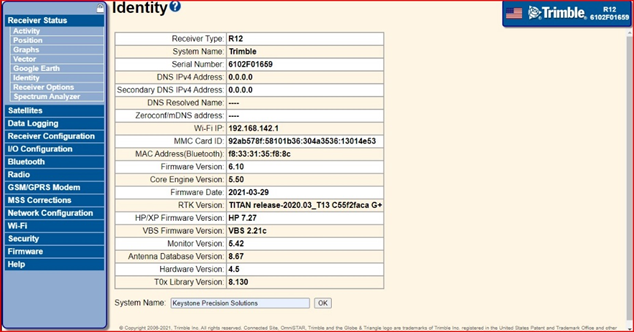
- Select Receiver Status and then Identity
- Then enter the desired name in the system name box and select OK
-
- You will then be prompted that the receiver will need a reboot to complete select Ok
Comments
0 comments
Please sign in to leave a comment.