
Here you will find the instructions to upload a Geoid File on to a TSC5 and TSC7, Trimble Field Controller using the Trimble Access field controller software:
Download the required file from https://www.trimble.com/globalTRLTAB.aspx?Nav=Collection-71
Navigate to the proper file for download. This is most commonly, Geoid 18 (Conus), for customers within the Continental United States.

Download this file either onto an external device or a convenient place on your computer’s desktop.
Connect your device to your computer
Using Window File Explorer, proceed to the file location on your device.
TSC5 - Internal Storage/Trimble Data/Geodetic Data
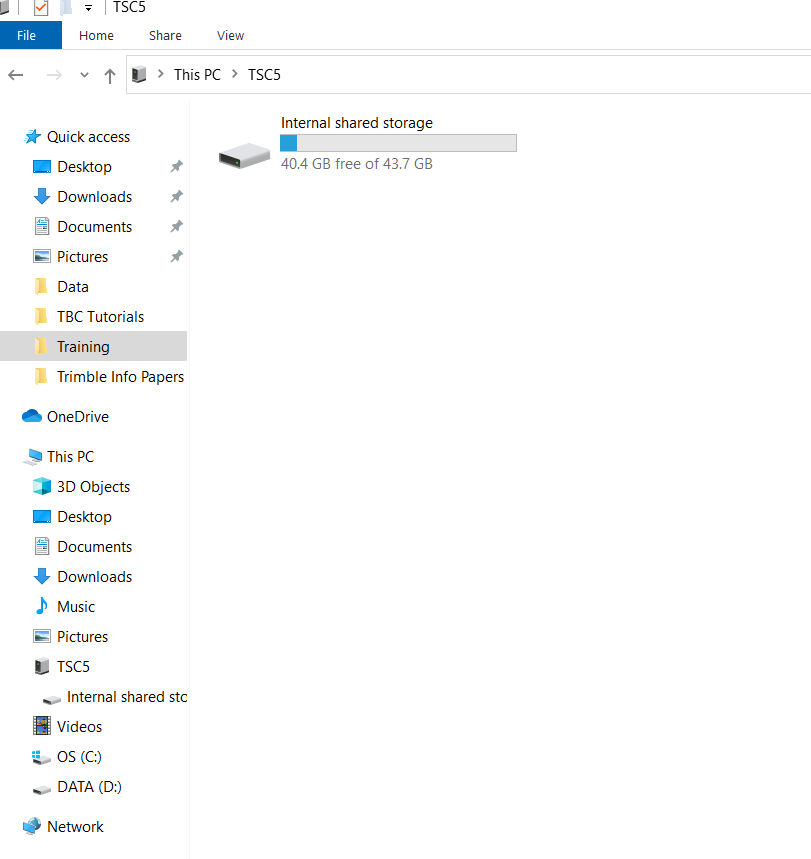
Find the Controller, Click on Internal Storage: (go to the View tab and be sure that the Hidden items box is checked)
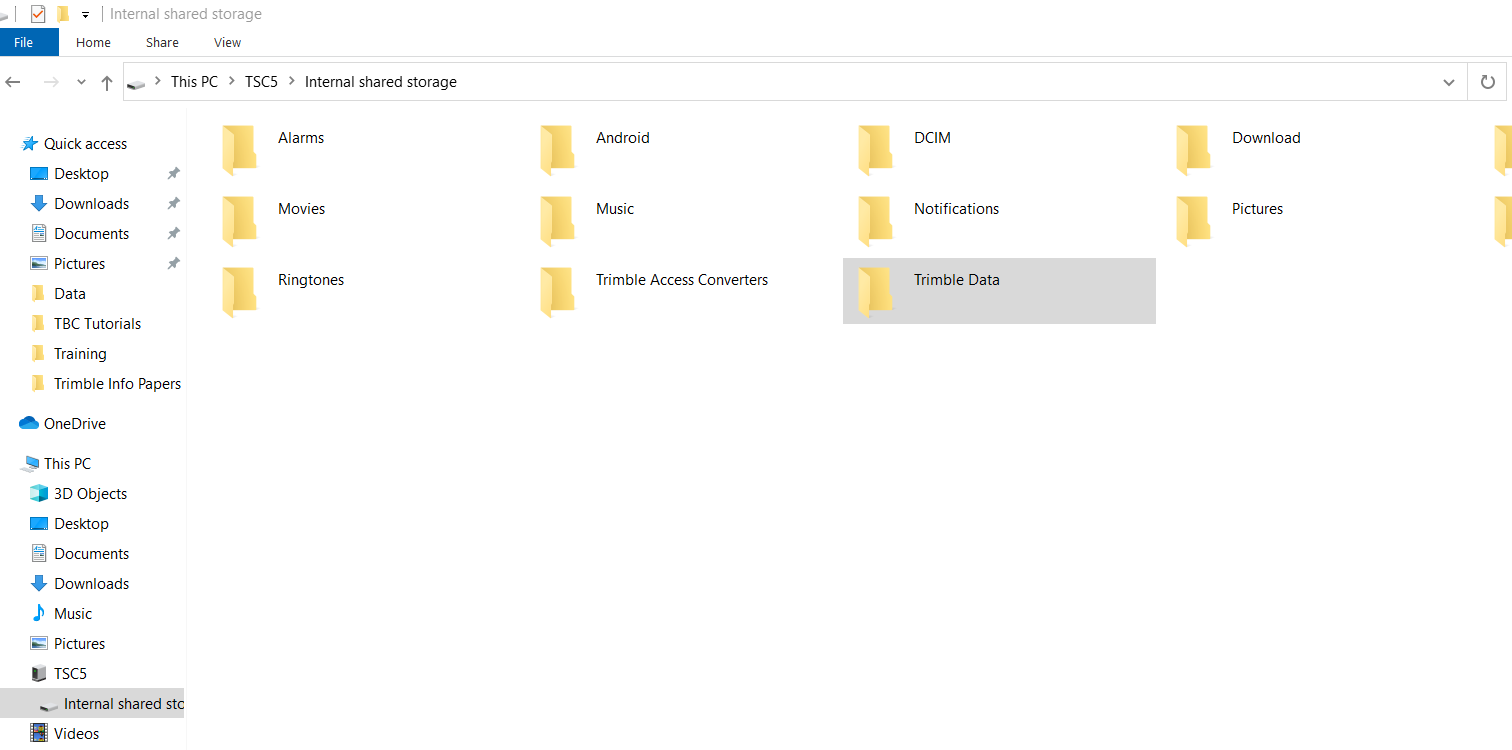
Find and Click on Trimble Data:
Find and Click on Geodetic Data:
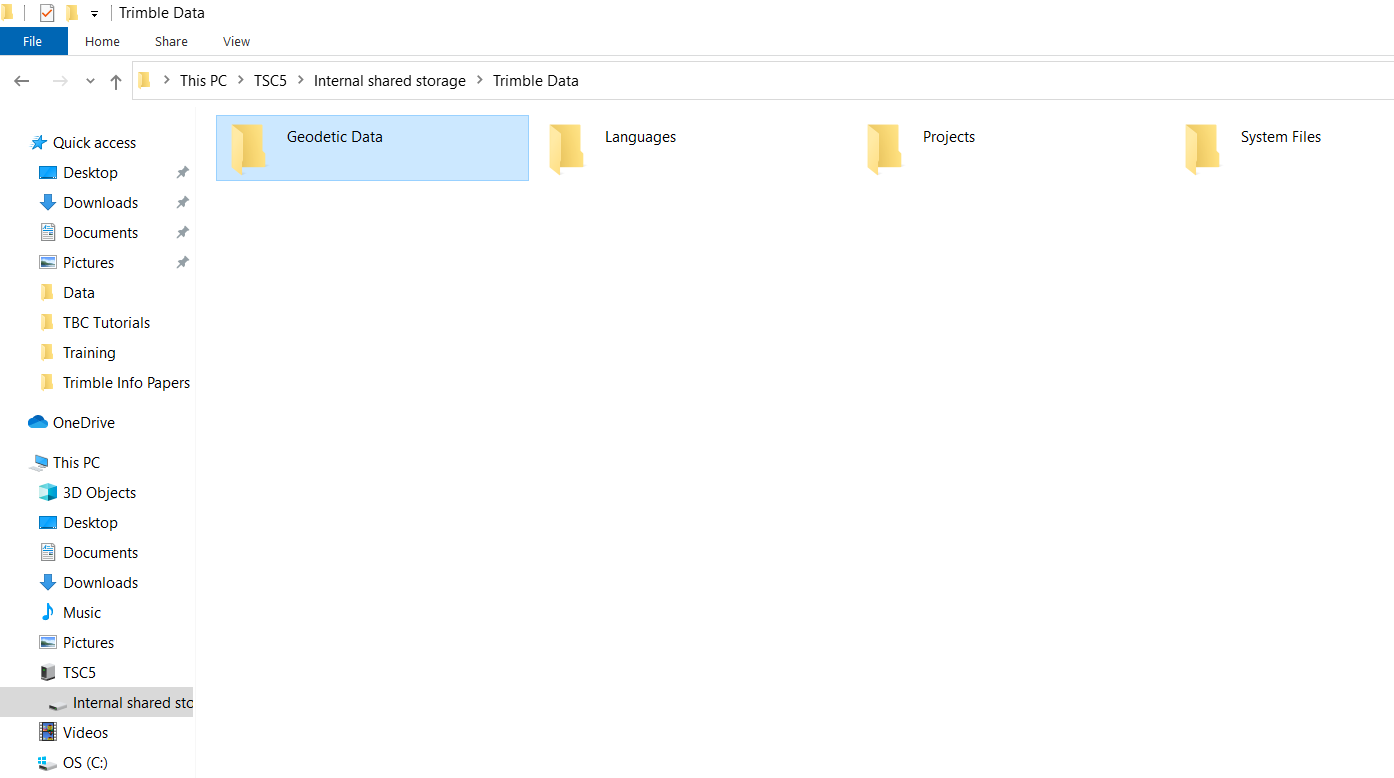
Copy and paste, “g18us.ggf” into the Geodetic Data file folder.
You will now be able to reference the Geoid Model within your job setup in Trimble Access on your Trimble Field Controller.
TSC7 – Internal Storage/Program files/Trimble/Trimble Data/Geodetic Data
Comments
0 comments
Please sign in to leave a comment.